Let an assistant prepare & send for you
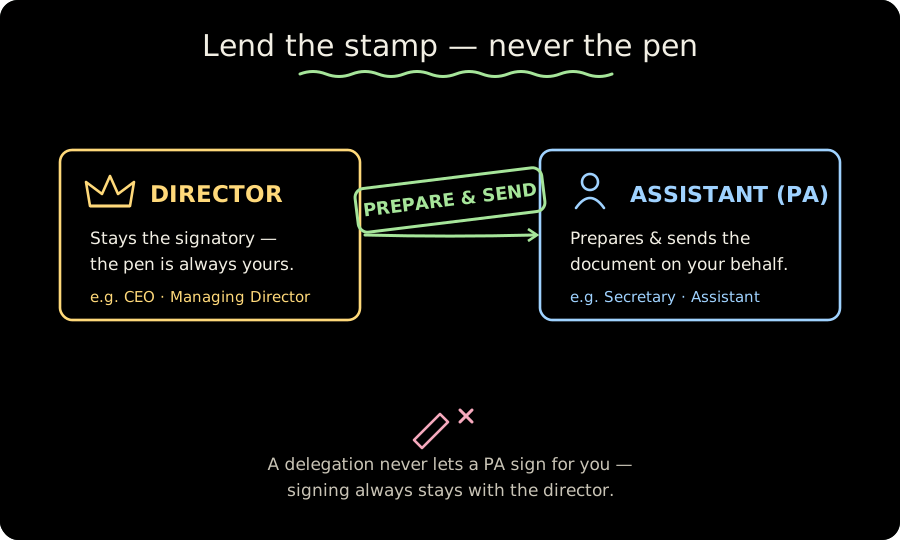
Directors are often busy. MauriSign lets you delegate the legwork — a personal assistant (PA) can prepare a document and send it out on your behalf, while you remain the signatory. A delegation can never grant the ability to sign for you.
Setting this up is two steps: make sure the PA is a member of the company, then grant them a prepare-&-send delegation.
- 1
Add the assistant to the company
The PA needs a login inside the company first. An owner or admin invites them from Settings → Team by email — a Member role is all a PA needs.
Working across several companies? The PA is invited into each company separately, so each keeps its own membership and audit trail. A plain member can't send invitations — ask an owner or admin if that's not you.

Settings → Team: an owner or admin invites the assistant as a Member. - 2
Grant a prepare-&-send delegation
Open Settings → Delegation and grant the assistant permission to act on your behalf. You can do this for yourself; an owner or admin can also set it up on a director's behalf.
Optionally set an expiry date — the delegation stops working automatically once it passes — and you can revoke it at any time.
Tip. A delegation only ever grants “prepare & send”. It never lets the assistant sign a document in your place — signing always stays with you as the director.
- 3
How the assistant sends for you
Once the delegation is active, the assistant sees a “Prepare on behalf of” option when they upload a document for signature. They pick your name, prepare the document and send it to the recipient.
The document lands in your private documents as if you'd created it, and the audit trail records both identities — the assistant who acted, on behalf of you. When it's your turn to sign, you sign it yourself, logged in as you.
Ready to try it yourself?
Start a free 14-day trial — no card required.